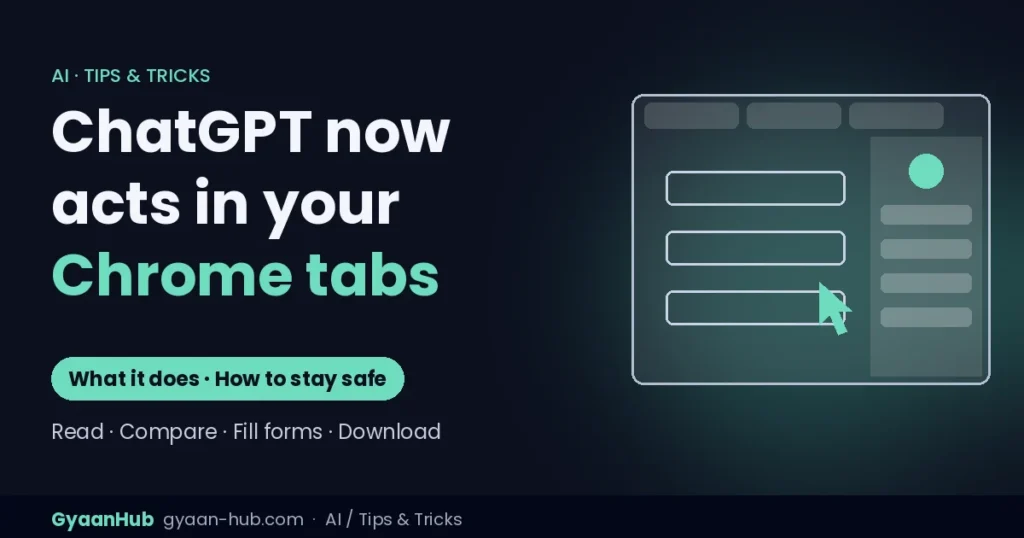
Quick answer: ChatGPT’s Chrome extension can now read your open tabs and act inside them. It can summarise and compare pages across several tabs, and in its “Work” mode it can fill in forms, send messages, download files and organise tabs for you. The update is available on all ChatGPT plans.
Here is what it can do, how to use it, and how to stay safe while an AI is clicking around your browser.
What’s new
- Read any open tab: mention a tab with
@chromein the ChatGPT sidebar, or let it pull information from several tabs at once. - Summarise: get the key points of a long article without leaving the page.
- Compare across tabs: for example, compare three laptops on price, weight, warranty and delivery time, each open in its own tab.
- Act for you (Work mode): using computer use, ChatGPT can fill out forms, send messages, download files and group tabs.
- Sidebar history: your ChatGPT chat history sits right next to the page you’re viewing.
How to start using it
- Install or update the official ChatGPT extension from the Chrome Web Store. Check that the publisher is OpenAI.
- Sign in with your ChatGPT account.
- Open the ChatGPT sidebar on any page.
- Ask about the current page, or type
@chrometo pick other open tabs. - For actions, switch to Work mode and describe the task, for example “fill in this registration form with my name and email”.
Useful things to try
- Shopping: open 3–4 product pages and ask for a comparison table.
- Research: open several news articles and ask for a combined summary with differences between sources.
- Office work: ask it to fill repetitive web forms or download a set of reports.
- Tab overload: ask it to group 30 open tabs by topic.
Stay safe: 6 rules for AI in your browser
- Never let it handle passwords, OTPs, card numbers or bank logins. Enter those yourself.
- Watch before you approve. Check what it filled in before anything is submitted or sent.
- Close sensitive tabs such as banking, email or medical records before asking it to read “all tabs”.
- Beware of prompt injection. A malicious web page can hide instructions meant for the AI. If it starts doing something you didn’t ask for, stop it.
- Use it on trusted sites for actions; use read-only questions elsewhere.
- Don’t use it for payments. Major US banks have started blocking outside AI agents from moving money, for good reason.
For more on why banks are wary, read Banks Block AI Agents: Why Schwab and JPMorgan Won’t Let AI Move Your Money.
Is it worth using?
For reading, comparing and summarising, it is a genuine time-saver and low risk. For actions, it is useful for repetitive form-filling and downloads, as long as you stay in control and check its work. Treat it like a fast new assistant: helpful, but not yet someone to leave alone with your accounts.
Frequently asked questions
Is the ChatGPT Chrome extension free?
The new tab features are available on all ChatGPT plans, including free accounts.
Can ChatGPT fill forms in Chrome?
Yes. In Work mode it can fill out forms, send messages, download files and group tabs.
Can ChatGPT see all my tabs?
It can read tabs you point it to with @chrome or ask it to use. Close sensitive tabs before asking it to look across all of them.
Is it safe to use ChatGPT for online payments?
We don’t recommend it. Enter payment details, passwords and OTPs yourself.
Sources: The Decoder; Android Authority; PPC Land; The Neuron.